
In short: if you’ve never wireframed before, start with draw.io or Excalidraw. Both are free wireframing tools with no paid tier hiding the basics, and you can share a first layout within an hour. Move to Penpot or Figma once you want reusable components and clickable prototypes. Skip Adobe XD (Adobe’s former interface design app) and InVision, which still appear in old lists but are no longer sensible choices for a new project.
The rest of this guide compares eight options on the two things a beginner actually feels. First, how much you must learn before drawing your first box. Second, how quickly you get from a blank canvas to a link you can send. Each entry covers the free plan, what the tool does well, and the kind of project it suits.
What a wireframe is, and where it stops
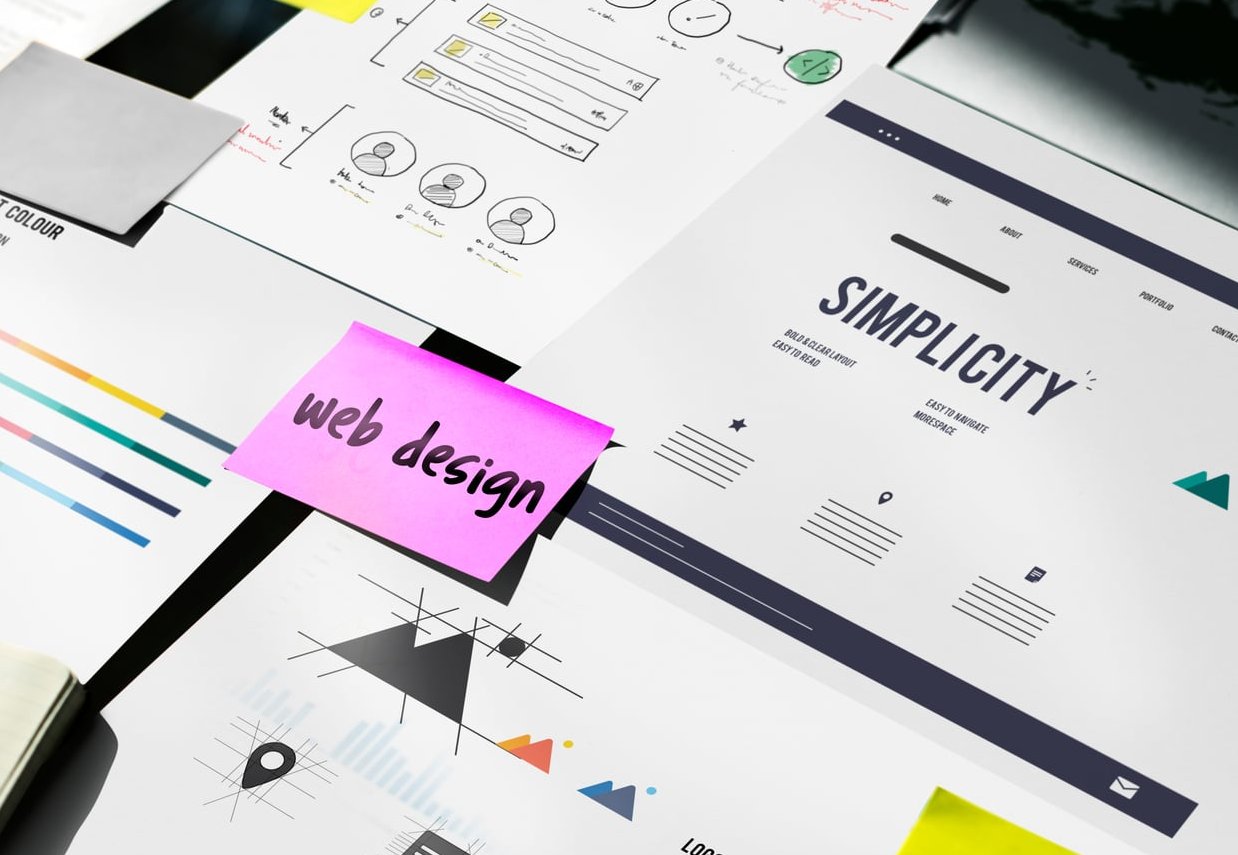
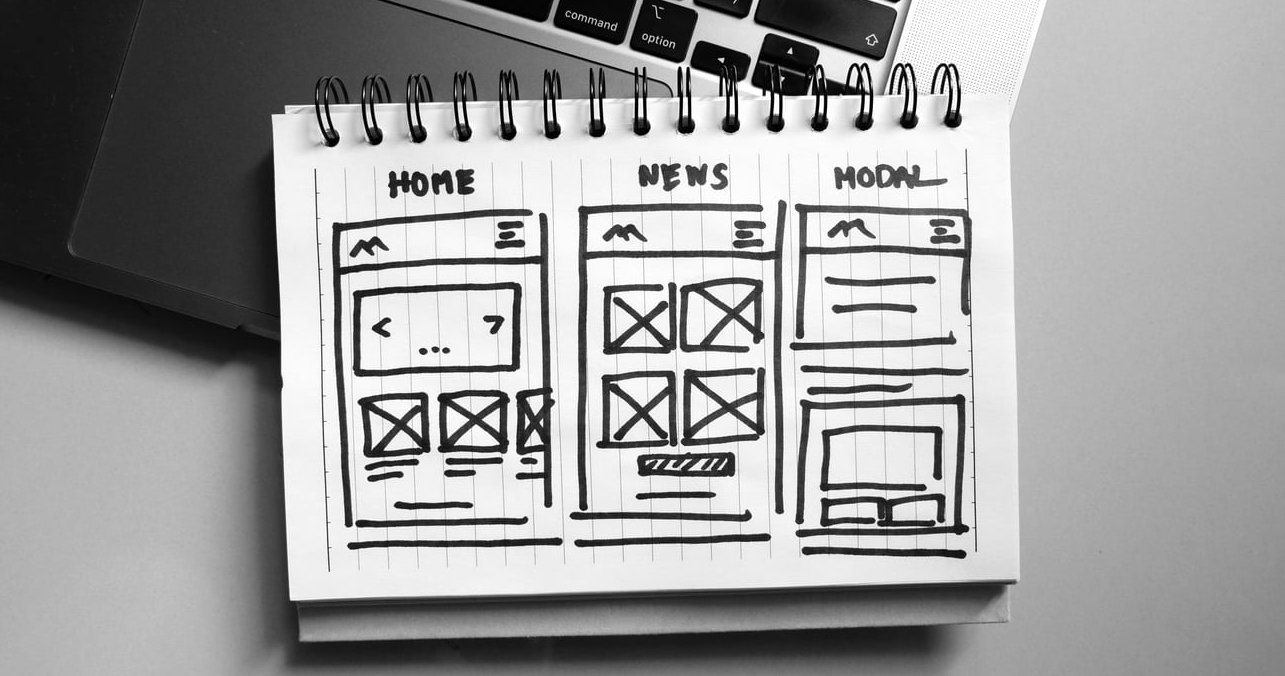
A wireframe is the skeleton of a page. It shows where the header, navigation, content blocks, forms and buttons go, using grey boxes and placeholder text instead of colours, fonts and photos. Its job is to settle structure and content hierarchy before anyone spends time on visual design or code.
The design process usually moves through three stages, and knowing them saves you from picking the wrong tool:
- Low-fidelity wireframe: boxes, lines and labels. Fast to change and cheap to throw away, which makes quick iteration possible.
- Mockup: a static, high-fidelity picture of the final interface, with real typography, colours and images.
- Prototype: a clickable version where buttons lead to other screens, sometimes with transitions and animations, so you can test the user flow.
Most free tools cover the first stage well. Fewer handle all three, and those tend to have a steeper learning curve. That trade-off drives almost every recommendation below.
Wireframes also protect you from a classic client problem. A polished mockup makes stakeholders think the project is nearly finished, so they start debating shades of blue. A deliberately rough wireframe keeps the conversation on layout, content and what the user needs to do on the page.

What to check before you pick a free wireframing tool
“Free” covers three very different deals. Some tools are free and open source with no limits. Some offer a free plan capped by projects, boards or elements.
Others only give you a free trial, after which your files become read-only or locked. Before you commit to a wireframe tool, read that line on its pricing page, because it decides whether your work survives next month.
After that, five features matter for a beginner:
- Export: can you get a PDF or a PNG (a standard image file) out of the free version? Clients and developers rarely want to create an account just to view a layout.
- Templates and user interface (UI) kits: ready-made elements such as buttons, forms, icons and phone frames save you from drawing everything by hand. A UI kit is simply a library of these interface pieces.
- Collaboration: sharing by link and leaving comments are enough for most small projects. Real-time collaboration, where several people edit the same file at once, matters mainly for a design team.
- Online or offline: browser tools need no installation but depend on the vendor staying in business. Desktop apps keep your files on your own drive.
- Drag-and-drop and shortcuts: an intuitive interface matters more than a long feature list when you’re learning.
The 8 free wireframing tools compared
The ratings below are our own assessment of how many concepts you need before you can draw a usable layout. They’re not timed benchmarks, and your mileage will depend on whether you’ve used any design or diagram software before.
| Tool | Free deal | Runs on | Learning curve | Blank canvas to shareable layout | Best for |
|---|---|---|---|---|---|
| Excalidraw | Free, open source | Browser | Very low | Minutes | Quick sketches, early ideas |
| Wireframe.cc | Free version, paid upgrades | Browser | Very low | Minutes | One page at a time |
| draw.io | Free, open source | Browser, desktop | Low | Under an hour | Multi-page sites, user flows, PDF export |
| Pencil Project | Free, open source | Windows, macOS, Linux | Low | Under an hour | Offline work |
| Miro | Free plan, 3 editable boards | Browser, desktop, mobile | Low | Under an hour | Workshops with clients |
| Canva | Free plan | Browser, desktop, mobile | Low | Under an hour | Non-designers who already use it |
| Penpot | Free, open source | Browser, self-hosted | Medium | An afternoon | Components and prototypes without vendor lock-in |
| Figma | Free Starter plan, capped | Browser, desktop | Medium | An afternoon | Going from wireframe to final design in one file |

Simple tools you can use in minutes
1. Excalidraw: the fastest start
Excalidraw is a free, open-source whiteboard with a hand-drawn look. You open the site and draw, with no account needed. That sketchy style is a feature: nobody mistakes it for a finished design, so feedback stays on structure. It has no real component system, so it’s best for the first rough pass of a landing page or a quick idea you want to show someone today.
2. Wireframe.cc: minimal by design
Wireframe.cc strips the interface down to a canvas, a few shapes and a limited colour palette. You don’t need to sign up to try it, and you share a wireframe as a URL. The free version suits a single page or a simple mobile screen. Its premium features are paid, and you’ll feel the limits as soon as a project grows past a handful of pages.
3. draw.io: free with no catch
draw.io, also published as diagrams.net, is a diagramming tool with a dedicated mockup shape library. It’s free and open source, runs in the browser or as a desktop app, and saves to your device, Google Drive or OneDrive. Related reading: 5 Free Wireframe Design Tools in 2020.
That makes it our default pick for small business websites: it handles several pages, user flows, flowcharts and sitemaps in one file, and exports clean PDFs. It also integrates with Confluence and Google Workspace. Its downside is that it looks like a diagram tool, because it is one.
4. Pencil Project: offline and open source
Pencil is a free, open-source desktop app for GUI prototyping, which means drawing graphical user interfaces. It runs on Windows, macOS and Linux and ships with built-in shapes for desktop and mobile apps.
You can link pages and export to PDF or PNG. Choose it if you work offline or don’t want client layouts stored on someone else’s server. Check its release page for the latest version before you rely on it. savedelete.com has a solid rundown on this.
Whiteboards and full design platforms
5. Miro: wireframing as a workshop
Miro is an online whiteboard with wireframe templates and a library of UI elements. Its free plan gives you three editable boards and unlimited team members. The same board can hold mind maps and flowcharts next to your layouts.
It shines when you sketch a layout live with a client, add sticky notes and vote on options. It’s a poor home for a detailed multi-page wireframe, because boards get crowded fast.
6. Canva: the tool you might already know
Canva includes wireframe templates and a drag-and-drop editor that most small business owners have already used for social posts. It’s a reasonable choice when the person wireframing isn’t a designer. Its weakness is fidelity creep: photos, fonts and colours sit one click away, so the wireframe quietly turns into a mockup.
7. Penpot: the open-source design platform
Penpot is a free, open-source design and prototyping tool that runs in the browser or on your own server. It covers the whole path from wireframe to clickable prototype, with reusable UI components. Its layout features follow flexbox and grid, the two layout systems of CSS (the code that styles web pages), so developers can read your structure directly. Expect an afternoon of learning before it feels natural.
8. Figma: the industry default, with limits
Figma is where most professional UI and user experience (UX) work happens, so learning it pays off if you plan to keep designing.
The free Starter plan caps how many shared files and pages you keep, so check the current limits on Figma’s pricing page before you start a large project. Its community library holds free wireframe kits and plugins. The risk, in our view, is spending an hour on corner radius when you should be deciding what goes above the fold.
Free trials, and the tools to skip
Balsamiq is often called the easiest wireframing tool for beginners, and it has been around since 2008. Its sketch-style library of UI elements makes low-fidelity layouts very fast. It isn’t free, though: you get a 30-day trial, then you pay. That’s fine for a short project, provided you export everything as PDF before the trial ends.
Mockplus, Justinmind, Moqups, MockFlow, Cacoo and Axure fall in a similar zone. Each has a free plan or trial with real limits on projects, screens or features. For example, Mockplus states that its free plan allows 3 active projects. These tools make sense if you need interactive prototypes, but none beats draw.io or Penpot on the “free, no strings” test.
Two names still appear in many top lists, and you should now avoid them for new work:
- Adobe XD: Adobe placed it in maintenance mode in 2023, so no new features are coming.
- InVision: the company shut down its design services at the end of 2024, so its tools, including Studio, are gone.
The lesson goes beyond these two tools. Online services can close or change their free plan, so keep exports of anything a client has approved.
Which tool for which project
| If you are… | Use | Avoid |
|---|---|---|
| A small business owner planning a 5-page site | draw.io, or Excalidraw for the first sketch | Figma at the start: too much to learn for one site |
| A freelancer showing layouts to clients | Excalidraw for early rounds, Penpot or Figma for the final pass | Canva: clients start judging colours too early |
| Planning a mobile app | Penpot or Figma, with a phone-sized frame | Miro: boards get messy beyond a few screens |
| Working offline or with confidential projects | Pencil Project, or the draw.io desktop app | Cloud-only tools on a trial |
| Running a workshop with stakeholders | Miro or Excalidraw live collaboration | Desktop apps nobody else can open |
| Training to become a UX designer | Figma, plus Penpot as a backup | Tools that only do diagrams |
For a typical agency website, we suggest one simple rule: sketch the homepage in a rough tool, agree on structure, then rebuild only the approved pages in a component-based tool. You’ll draw less twice. You will find the same thinking at an agency working along the same lines.

Your first wireframe in three tools
draw.io
- Open app.diagrams.net and choose where to save: Device, Google Drive or OneDrive.
- Click Create New Diagram, then Blank Diagram.
- At the bottom of the left panel, click + More Shapes, tick Mockups and click Apply.
- Drag a browser window shape onto the canvas, then add a header, navigation, content blocks and buttons from the Mockups library.
- Add a page per screen with the + tab at the bottom, and link buttons to pages through Edit Link.
- Share with File > Export as > PDF, ticking all pages.
Figma
- Create a new design file from the home screen.
- Press
Ffor the Frame tool and pick a preset such as Desktop or iPhone in the right panel. - Draw blocks with
R(rectangle) and labels withT(text). Keep everything in shades of grey. - Select a group of elements and press
Shift + Ato apply Auto layout, so blocks stack and resize like a real page. - Turn repeated elements, such as a card or a nav bar, into components with
Ctrl + Alt + K(Cmd + Option + Kon Mac). - Click Share and copy the link, or select a frame and add a PDF export at the bottom of the right panel.
Excalidraw
- Open excalidraw.com. You don’t need an account.
- Use
Rfor rectangles,Tfor text andAfor arrows that show where a click leads. - Open the library panel to import free wireframe libraries, so you aren’t drawing every button.
- Click Share to start a live session, or export to PNG or to SVG, a vector image format that stays sharp at any size.
Mobile and accessibility from the first sketch
For many small business sites, phones bring a large share of visits, and your own analytics will tell you how large. Draw the mobile layout first, or at least alongside the desktop one. Use a real device frame, such as an iPhone or Android phone size, stack content in one column, and decide what disappears behind a menu. A responsive layout that only exists in the desktop wireframe gets improvised later, usually badly.
Accessibility also starts at this stage, because structure is what assistive technology reads. Three checks fit into any wireframe:
- Touch targets: the Web Content Accessibility Guidelines (WCAG) are the W3C standard most accessibility laws refer to. WCAG 2.2 criterion 2.5.8 asks for targets of at least 24 by 24 CSS pixels at level AA, the middle conformance level. Apple’s Human Interface Guidelines recommend 44 by 44 points, and Material Design recommends 48 by 48 density-independent pixels.
- Headings and order: label your heading levels in the wireframe. WCAG criterion 2.4.3 requires a focus order that preserves meaning, so the keyboard order should follow the visual order you draw.
- Labels: write a visible label for every form field. Placeholder text alone disappears once someone starts typing.
One legal point is easy to miss. If you paste real customer names or emails into a shared cloud wireframe, that’s personal data processing under the GDPR, the EU’s data protection regulation. Use invented placeholder content instead.
Four mistakes beginners make
The wireframe turns into a mockup. You spend a whole evening on one screen. The cause is a high-fidelity tool with fonts, colours and effects one click away. Limit yourself to grey boxes and one font, or sketch the first version in Excalidraw so polishing isn’t even possible.
The client approves the colours, not the structure. Feedback is about the shade of a button, and the navigation never gets questioned. The wireframe looked finished. Keep it grey, label it “draft structure”, and ask one precise question per review, such as “Can a visitor find the contact form in one click?”
The trial ends mid-project. Files become read-only the week before launch. The cause is building on a free trial without noticing the end date. Check the pricing page on day one and export PDF versions at every milestone.
You draw every page from scratch. A change to the header means editing twelve screens. Turn repeated elements into components in Penpot or Figma, or copy one master page in draw.io before you build the others. Components also keep consistency across pages. It is argued more carefully on wildnettechnologies.com.
How to tell your wireframe did its job
A wireframe works when it removes questions before design starts. Three signals tell you it did:
- Fewer design rounds: count the revision requests that concern layout once visual design begins. Structural changes at that point mean the wireframe missed something.
- A quick usability test: show the wireframe to someone outside the project and ask them to find a key action, such as booking or contacting. If they hesitate, fix the layout now, while it’s cheap.
- A developer can estimate from it: if the developer has no questions about sections, states or page links, your handoff is complete.
Checklist for your first wireframe
- List the pages and the one main action on each.
- Pick a tool from the decision table and check its free plan on the pricing page.
- Sketch the mobile layout first, then the desktop one.
- Use grey boxes, placeholder text and one font only.
- Mark heading levels and label every form field.
- Check that buttons and links meet the minimum target size.
- Link the pages to show the user flow.
- Review structure only with the client, one question at a time.
- Export a PDF of each approved version.
The best next step is small: pick one page of your site, usually the homepage, and wireframe it today in draw.io or Excalidraw. You’ll know within an hour whether the simple tool is enough, or whether your project deserves the extra learning that Penpot or Figma asks for. For more on planning a site that looks good and works, browse our other web design and logo design guides.
FAQ
Can I just wireframe in PowerPoint, Google Slides or Keynote?
Yes, and for a quick three-page flow it works well. Slides give you shapes, text, alignment guides and PDF export, and you can link slides to fake clicks. Apple even showed Keynote prototyping in a 2014 Worldwide Developers Conference (WWDC) session, “Prototyping: Fake It Till You Make It”.
Are AI wireframe generators worth trying?
They can produce a starting layout from a text prompt in seconds, which helps when you’re stuck. They also tend to produce generic layouts that ignore your actual content. Treat the output as a rough draft to edit, never as a decision.
Do I need a wireframe for a one-page site or a logo project?
A logo doesn’t need a wireframe, but the pages that display it do. Even for a one-page site, ten minutes of sketching settles the order of sections and where the call to action sits. Put the logo in as a simple placeholder box so it doesn’t steal the discussion.
Is pen and paper still a good option?
For the very first ideas, often the best one. Paper is fast, cheap and impossible to over-polish. Move to a digital tool once you need to share, link pages or keep versions.
Can I import a wireframe from one tool into another?
Rarely in a useful way. Most tools export images or PDFs rather than editable files the next tool understands. Plan to rebuild the approved screens in your design tool, which also forces a useful second look at the layout.